 LOCK
Sensitivitas FF Beginner Guide For New Free Fire Players
Set up Sensitivitas FF as a beginner with safe starting values, a simple testing routine, and the order in which to adjust each setting.
Understand touch sampling, DPI, and input delay in Free Fire, and how they interact with Sensitivitas FF values on different Android phones.
Every drag you make is sampled by the touch panel dozens or hundreds of times per second, converted into camera movement by DPI and sensitivity, and only then drawn. When aim feels wrong, the fault can live at any stage of that chain.
This guide separates the stages so you stop blaming sensitivity for input problems. The settings themselves remain managed through Sensitivitas FF official site, while this page covers the hardware conversation underneath them.
Cable and wireless peripherals change nothing about touch, but hand position changes everything about drag geometry. Players who anchor the phone hand against the table edge gain a physical reference point that makes drag distances repeatable. Repeatable distances are the raw material sensitivity values are built from.
Sampling rate is how often the screen checks your finger position. Higher sampling means the game learns about small drag changes sooner, which players feel as tighter aim. Two phones with identical sensitivity values can feel completely different because their sampling differs.
You cannot change most panels' sampling, but gaming modes on many phones raise it. If your aim improves noticeably in game mode, sampling was part of your story all along.
DPI scales how far each physical drag travels on screen. Raising DPI and lowering sensitivity can feel similar in total distance while behaving differently in fine control, which is why the Free Fire DPI settings guide treats DPI as its own discipline rather than a shortcut.
Change DPI or sensitivity, never both in the same week. Stacked changes make results unreadable, and unreadable results lead to the endless re tuning cycle every player hates.
Delay grows from slow panels, heavy background load, thermal throttling, and unstable frame rates. The Android sensitivity guide lists the Android side checks that remove most of it, from closing overlays to managing storage pressure.
Test delay honestly: a fast 180 degree turn that lands late on screen is information, while a vague feeling of heaviness is usually frame rate, not input.
If your drags vary wildly between sessions, stabilise the physical setup before touching a single number. Input consistency is a posture achievement as much as a panel specification.
Draw slow circles on a touch testing app or in training by dragging the camera in a steady loop. Breaks and jumps in the circle reveal panel or protector problems that no Sensitivitas FF value can smooth over.
Fix the physical layer first: clean screen, sound protector, working game mode. Then judge sensitivity on a panel that reports your finger honestly.
Sweaty or very dry fingers change friction, and friction changes drag distance, which changes how every Sensitivitas FF value behaves. Many players keep a small cloth courtside and standardise their hands before serious sessions, exactly as athletes chalk up.
Gaming finger sleeves exist for this reason. If your aim varies by weather, friction is a likelier suspect than your settings.
A replaced screen rarely matches the original panel's sampling or feel, even when it looks identical. Treat a screen replacement like a new device: rerun the standard drills and expect one or two Sensitivitas FF values to move.
Clinics will not warn you about this, because the screen works. Your drill scores will notice the difference within one session.
On high sampling, high refresh phones, finer sensitivity values shine because the panel reports small movements faithfully. On basic panels, slightly higher sensitivity compensates for coarser reporting by reaching targets with less physical drag.
Neither direction is a rule, only a starting hypothesis. The drills remain the judge, because they measure your hand on your panel, which is the only combination that matters.
Aim problems live somewhere along the input chain. Checking the chain in order finds the faulty link faster than retuning the last link repeatedly.
How often the screen checks your finger position each second. Higher sampling reports small drag changes sooner, making aim feel tighter.
Treat them as separate tools and change one at a time. DPI scales the whole input, sensitivity shapes each aiming mode individually.
Panels differ in sampling, refresh, and size, so identical numbers produce different feel. Retune briefly on every new device.
Thick or worn protectors can dull fine input slightly. If aim suddenly feels vague, the protector is a cheap suspect to check.
Sensitivity is the last stage of a chain that starts at your fingertip. Sampling, DPI, and delay decide what your settings have to work with.
Learn the chain, change one link at a time, and aim problems become diagnosable instead of mysterious.
Work through the checklist above whenever this topic comes up in your own sessions. Small, recorded, repeatable steps are what turn Sensitivitas FF advice into personal results.
Download Sensitivitas FF APK LOCKSet up Sensitivitas FF as a beginner with safe starting values, a simple testing routine, and the order in which to adjust each setting.
 LOCK
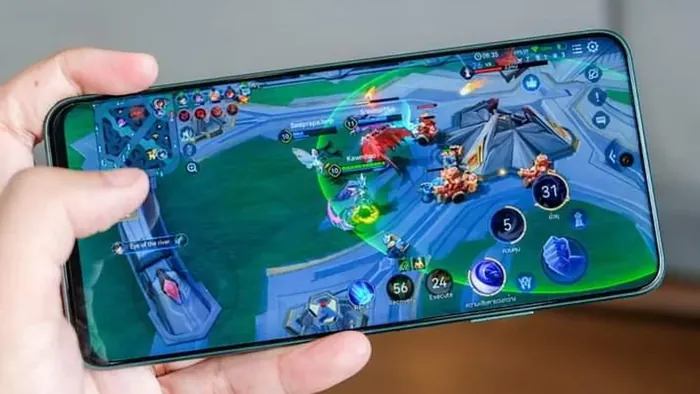
Tune Sensitivitas FF for rush gameplay with faster camera values, close range aim control, and drills that keep aggressive play accurate.
 LOCK
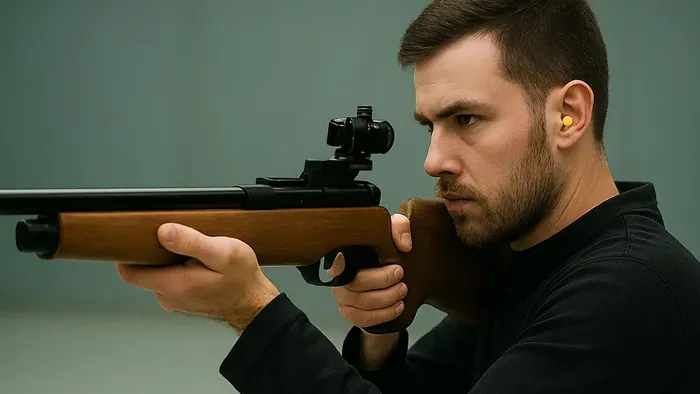
Dial in sniper sensitivity with scope values, flick control, and positioning habits that turn long range fights into your strongest ground.